Assignment Tracker for College: Sheets, Notion, or Synced
What a college assignment tracker must do, why Sheets and Notion templates fall behind by week four, and how a Canvas-synced tracker stays current.
By Hunter Forbes
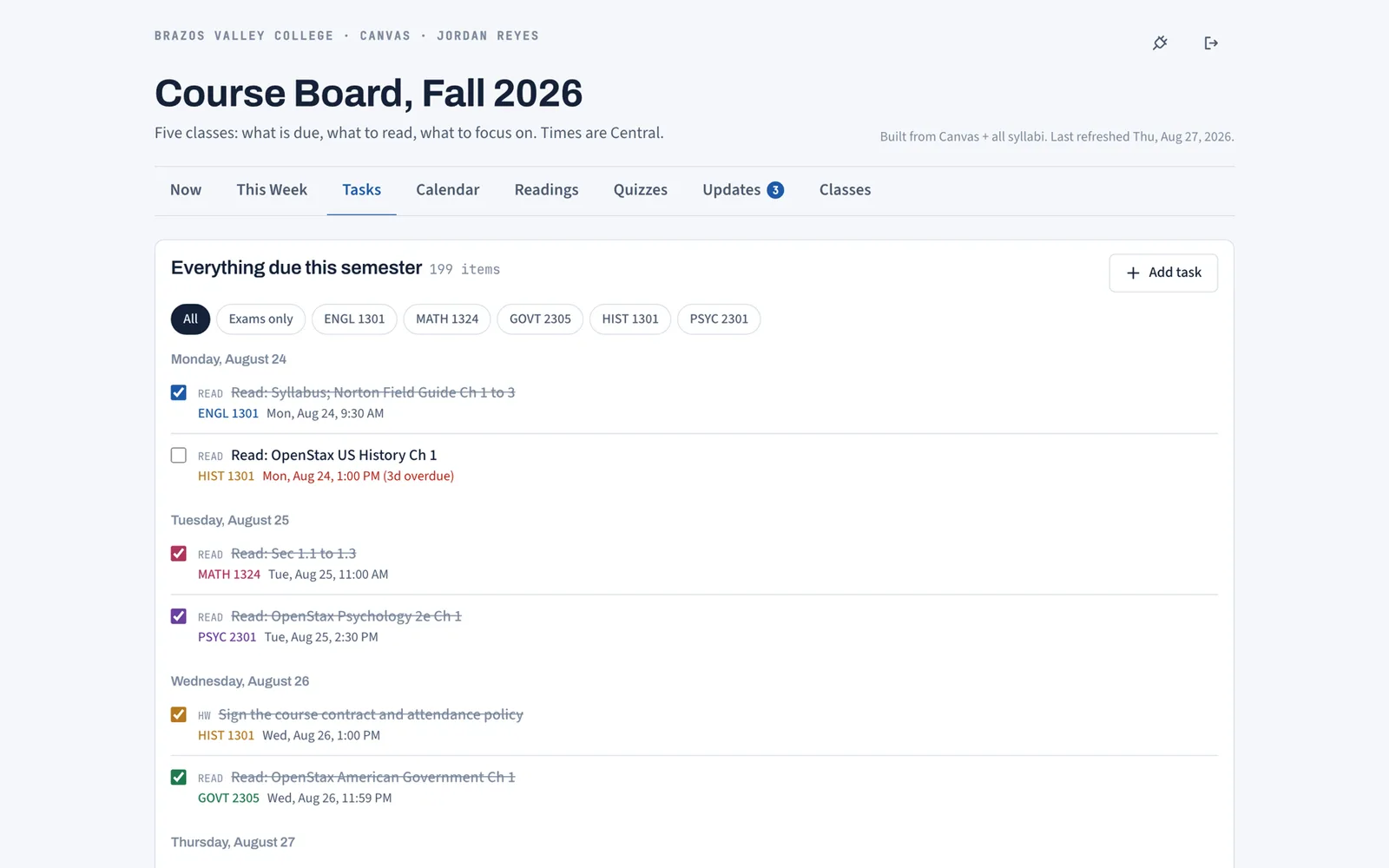
An assignment tracker is one list of everything due this semester, across every class, sorted by date, with a way to check things off. That is the whole job. The reason most trackers stop working by the fourth week is not the layout. It is that someone has to keep typing assignments into them, and that someone is you, at 11 pm, after the assignment already landed.
This guide covers what a college assignment tracker needs to do, the three ways students usually build one, and how a tracker that syncs from Canvas removes the typing.
What a college assignment tracker has to do
Strip away the templates and there are five requirements.
- Every class in one place. Canvas shows you one course at a time. A tracker that is split by course is just Canvas again.
- Sorted by due date, not by class. Tuesday's quiz in BIOL and Tuesday's homework in MATH belong next to each other.
- A link to the real thing. If the row says "Discussion 2" you should be one click from the Canvas page where you post it.
- Points, or at least a sense of weight. A 5 point reading check and a 100 point exam should not look the same.
- Check-off that survives. When you mark something done it should stay done, on your laptop and your phone.
The exam dates are the hard part. Instructors put quizzes and homework in Canvas because Canvas collects them. Exams that happen in a room often never get a Canvas assignment. They live in the syllabus PDF and nowhere else. A tracker that only knows what Canvas knows will miss the biggest items of the term.
Option 1: a Google Sheets assignment tracker
A spreadsheet is the classic free assignment tracker. Columns for course, assignment, due date, points, done. Sort by date. It works, and it costs nothing.
Where it fails: entry. A five-course load at a community college or a state university can be somewhere between 100 and 200 graded items across the term once you count reading checks, discussion posts, and homework sets. Someone has to type each one, with the right date, and then update it when the instructor moves a deadline. Most students type the first two weeks, get busy, and the sheet quietly becomes wrong.
If you go this route anyway: put the due date in a real date column so sorting works, add a column for the Canvas link, and block ten minutes every Sunday to reconcile the sheet against each course's Canvas page. The Sunday block is the part people skip.
Option 2: a Notion assignment tracker
Notion templates for college are everywhere and some are genuinely nice: a database of assignments, a board view by status, a calendar view by date, relations to a courses database. If you already live in Notion, this is better than a sheet because the calendar and list views come from the same data.
Same failure: it is still manual. Notion does not talk to Canvas. Every assignment gets typed once, and every date change gets typed again. Templates that look complete on day one are the ones most likely to be abandoned, because the setup cost was high and the upkeep cost is the same as the spreadsheet.
Option 3: the Canvas to-do list
Canvas has a built-in to-do list and a calendar. They are accurate for anything the instructor entered in Canvas, and they update themselves. For a lot of students this is the best free assignment tracker they never open.
Its limits are the ones above. It only knows Canvas items, so in-class exams from the syllabus are missing. The dashboard view is per course, and the list view mixes announcements with assignments. There is no place for the syllabus rules (late policy, attendance limit, what to bring on exam day). And the to-do list hides items once they are past due, which is exactly when you most need to see them.
Option 4: an assignment tracker that fills itself from Canvas
This is what Coursemap does, and it is the reason we built it instead of publishing another template.
You create a personal access token in your own Canvas settings (Account, Settings, Approved Integrations, New Access Token). That token lets Coursemap read your courses and assignments, nothing more. Paste it once. Every active course and every assignment with a due date lands on the board, each one linked to its real Canvas page, with points and type (quiz, homework, discussion, reading). Sync again any time; anything you checked off stays checked.
Then you upload each syllabus PDF. Coursemap reads it and pulls out the exam dates that never made it into Canvas, the grade weights, the late policy, office hours, and the attendance rule. Those go onto the board too, so the tracker has the in-class exam on October 14 even though Canvas does not.
The Tasks tab is the tracker view: everything due this semester in one list, grouped by day, with a course filter and an exams-only toggle. Graded items start checked. Checkboxes sync across devices. That is the five requirements, without the Sunday reconciliation block.
How to choose
- You want free, offline, and total control, and you will actually do the Sunday update: Google Sheets.
- You already run your life in Notion and enjoy maintaining it: a Notion template.
- Your school is on Canvas and your instructors put everything in Canvas, including exams: the Canvas to-do list is enough.
- Your school is on Canvas and your syllabi have dates Canvas does not, and you do not want to type: a synced tracker.
If your school is on D2L, Blackboard, or Moodle, the synced option does not apply yet. Those platforms require an admin-issued API key, which a student cannot generate. You can still use the syllabus upload and keep the tracker by hand.
Setting up the synced tracker
The full walkthrough is on how Coursemap works, and the features page shows all eight views the same data feeds. In short:
- Create a Canvas access token from your own settings page.
- Paste it on the Connect page. Courses and assignments sync in seconds.
- Upload each syllabus PDF. Exam dates and rules join the board.
- Open Tasks. Filter by course, or flip to exams only before a big week.
Coursemap is free while in early access. It is not affiliated with Instructure or your college, and it never reads or stores grades from Canvas.
The one habit that makes any tracker work
Whatever tool you pick, open it before you open Canvas. If the tracker is the first thing you look at in the morning, it stays honest, because you notice within a day when something is missing. If Canvas is the first thing you look at, the tracker becomes a diary of what you already knew, and it dies by midterms.
A two-week test before you commit
Whatever tracker you choose, run it for two weeks before you trust it. On the Sunday of week two, open every course in Canvas and every syllabus and count how many items are missing or wrong in the tracker. Zero means the tracker works for you. More than three means the upkeep cost is higher than the tool is worth, and you should either move to a synced option or accept that the Canvas to-do list is your real tracker and stop pretending otherwise.
The test matters because the failure is silent. A tracker that is 90 percent right looks the same as one that is 100 percent right until the 10 percent is an exam.
What to track that most trackers skip
- The reading. A reading has no due date in Canvas, so most trackers never list it. Then the reading quiz arrives. Put readings on the tracker with the date of the class they are due for.
- The drop date. One row, the last day to withdraw with a W. It decides more semesters than any assignment.
- Points and weights, not just dates. If you can see that the discussion post is 5 points and the exam is 150, the week plans itself.
- What has to be brought. A calculator model, a green scantron, a printed draft. It lives in the syllabus, and it is the difference between taking the exam and watching it.
Coursemap tracks all four, because they come from the syllabus PDF on upload and the reading list feeds the notes and quizzes for each chapter.