How to See All Your Canvas Assignments in One Place
Four ways to see every Canvas assignment on one screen: the built-in list and calendar, the calendar feed, and a synced board that adds the syllabus.
By Hunter Forbes
The fastest way to see all your Canvas assignments in one place is the List View on the Canvas Dashboard: click Dashboard, open the options menu (the three dots at top right), and choose List View. It shows every assignment from every course, sorted by due date. The Calendar in the left sidebar does the same on a month grid. Both are built into Canvas and cost nothing.
Both also miss the same things, which is why this guide exists. Here are the four ways to get a single view of your Canvas assignments, what each one shows, and what each one leaves out.
1. Canvas Dashboard List View
Where: Dashboard, then the options menu, then List View.
What it shows: every graded item with a due date across all your active courses, in date order, with a checkbox. Announcements and calendar events show up in the same list. You can add your own to-do items.
What it leaves out: anything the instructor did not put in Canvas. Exams held in a classroom, papers collected on paper, and reading assignments listed only in the syllabus are invisible here. Past-due items drop off the view after a while, so a missed assignment hides itself. The list also has no notion of weight: a 2 point discussion reply sits next to a 150 point exam with the same visual size.
Best for: a quick "what is due this week" check when every instructor uses Canvas fully.
2. Canvas Calendar
Where: Calendar in the left global navigation.
What it shows: the same assignments, on a week or month grid, color-coded by course. You can toggle courses on and off with the checkboxes on the right. Click an item to jump to it. Drag an item to a different day if you want your own view (this does not change the actual due date).
What it leaves out: same as List View. Only Canvas items. Also, if you are in more than ten courses total (including old ones), Canvas only shows ten calendars at once and you have to pick.
Best for: seeing the shape of a month, especially the weeks where several things land together.
3. The Canvas calendar feed in Google Calendar or Apple Calendar
Where: Calendar, then Calendar Feed at the bottom right. Copy the URL, then subscribe to it in Google Calendar (Other calendars, From URL) or Apple Calendar (File, New Calendar Subscription).
What it shows: every Canvas due date, inside the calendar you already use, next to work shifts and everything else. This is the best free option for a lot of students because it lives where they already look.
What it leaves out: it is one-way and it updates on Google's schedule, often several hours behind. Nothing you do in Google Calendar changes Canvas. And it is still only Canvas items, so the syllabus exams are still missing. The Canvas calendar guide covers this setup in detail.
Best for: people who live in Google or Apple Calendar and want due dates there with zero upkeep.
4. A synced board that adds the syllabus
This is the gap the first three cannot close: the assignments that only exist in the syllabus PDF. In a typical term those are the in-class exams, the final, and the reading list, which is to say the items worth the most points.
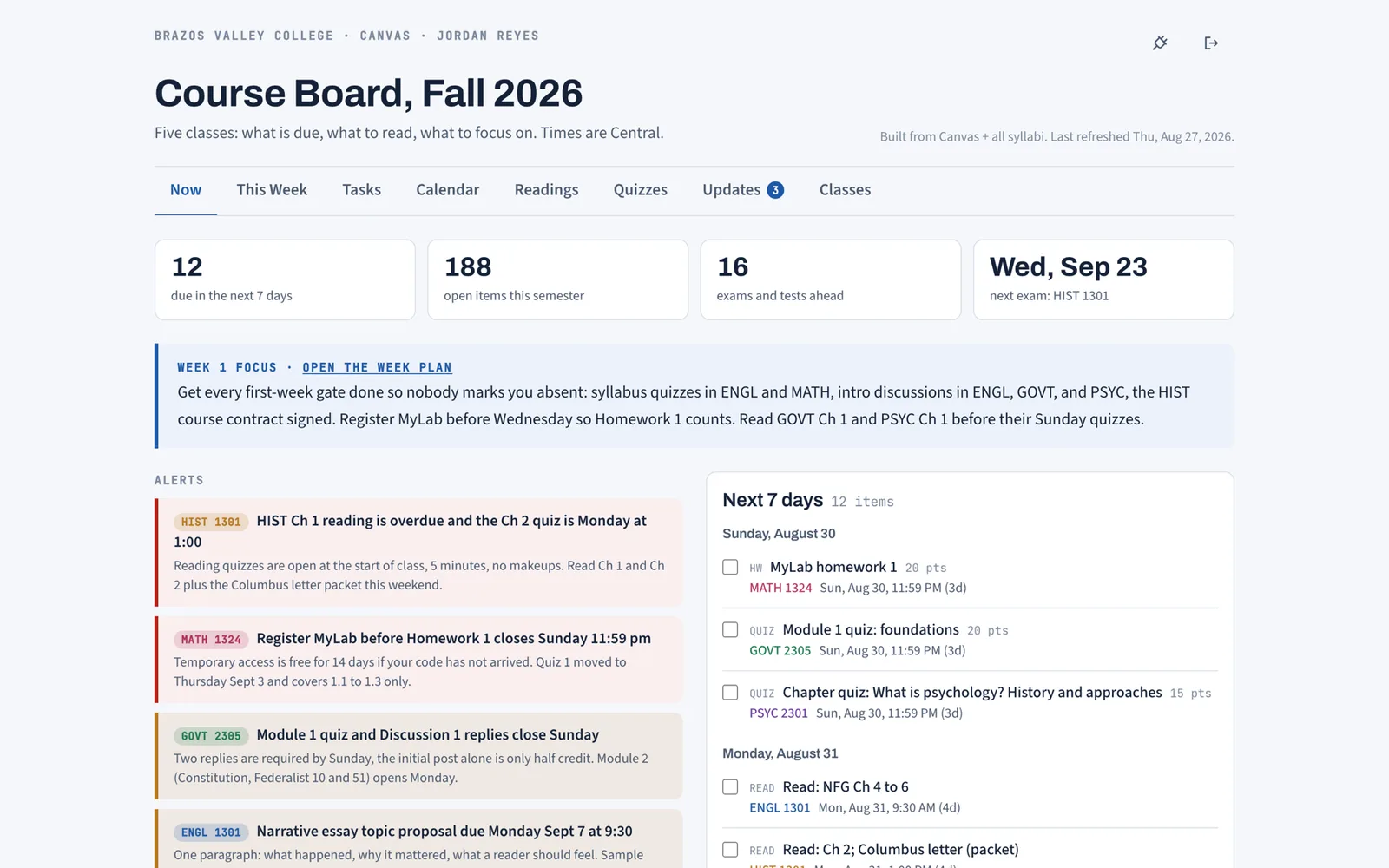
Coursemap is built for exactly this. You create a personal access token in Canvas (Account, Settings, Approved Integrations, New Access Token) and paste it once. Coursemap reads your active courses and every assignment with a due date, each linked back to its real Canvas page, with points and type. Then you upload each syllabus PDF and it pulls the exam dates, grade weights, late policy, office hours, and attendance rules onto the same board.
The result is one screen with everything:
- Now: what is due in the next seven days across every course, grouped by day, plus the count of exams ahead and the next exam date.
- Tasks: the full semester in one list, filter by course or show exams only.
- Calendar: month grid, exams in red.
- Classes: the syllabus rules per course, so the late policy is one click away when you need it.
Sync again any time. Instructor changes in Canvas come through; things you checked off stay checked; edits you made by hand are kept. Coursemap never writes back to Canvas and never reads or stores grades.
Which one should you use?
- Every instructor puts everything in Canvas, including exams, and you just need a list: Dashboard List View.
- You think in months: Canvas Calendar.
- You already run your life from Google or Apple Calendar: the calendar feed.
- Some of your exams and readings live only in the syllabus, or you want a plan for the week instead of a list: a synced board.
Why the syllabus matters more than the list
Instructors use Canvas to collect work. They use the syllabus to describe the course. So Canvas is complete for homework and online quizzes, and the syllabus is complete for exams, readings, and rules. Any single view that only reads one of them is half a semester. If you keep the Canvas list as your only tracker, write the syllabus exam dates into it by hand on the first day, or you will find out about the exam from the person next to you.
Setting up the synced view
The how it works page walks through the token, the sync, and the syllabus upload; the whole setup takes about two minutes per course. Coursemap works with any school on Canvas and is free while in early access. If your school uses D2L, Blackboard, or Moodle, sync is not available yet (those need an admin key), but syllabus upload and the plan still work by hand.
What "all assignments" actually means
Students say "all my assignments" and mean four different lists that happen to overlap:
- Things with a Canvas due date (homework, online quizzes, discussion posts).
- Things collected in person or not at all (in-class exams, presentations, participation).
- Things to read before class, which are never assignments in Canvas.
- Things that are rules rather than items: attendance limits, the drop date, the late policy.
Canvas's own views cover list 1 completely and nothing else. A calendar feed carries list 1 into your phone. Only a tool that reads the syllabus covers lists 2 through 4. When you evaluate any "see everything in one place" method, ask which of the four lists it holds; most hold one.
A five-minute setup that works with any of the four
Whichever view you pick, do this on the first day of the term. Open every syllabus and add every in-class exam, the final, and the drop date to the view by hand: as Canvas personal events, as Google Calendar events, or as tasks on a board. It is the highest-value five minutes of the semester because it is the only way lists 2 and 4 get into a Canvas-only view. On Coursemap this step is the syllabus upload, and the features page shows where each of the four lists ends up on the board: assignments and exams on Tasks and Calendar, readings on Readings, rules on Classes.