Canvas Calendar Guide: What It Misses and Google Sync
How the Canvas calendar works, how to subscribe to it from Google Calendar or Apple Calendar, and the one category of dates it will never show you.
By Hunter Forbes
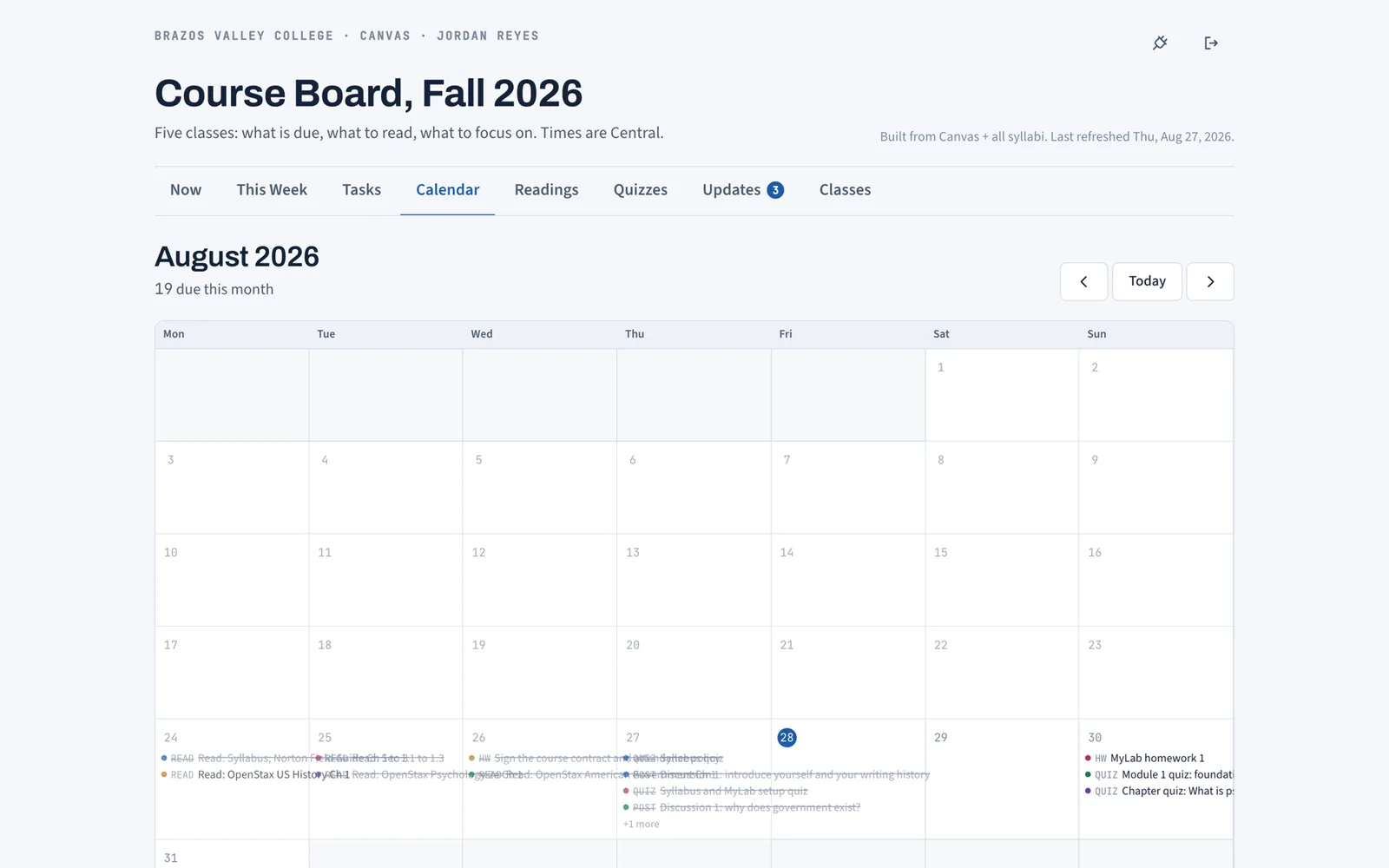
The Canvas calendar is the month or week grid under Calendar in the left navigation. It shows every assignment, quiz, and discussion with a due date from every course you are enrolled in, color-coded by course, and you can subscribe to it from Google Calendar or Apple Calendar with the Calendar Feed link at the bottom right of the page. It is accurate for anything your instructor entered in Canvas, and it is missing anything they did not, which usually means the exams.
This guide covers how to read it, how to get it into the calendar you already use, and how to fill the gap.
How the Canvas calendar works
Open Calendar from the global navigation (the left bar). You get:
- Views: week, month, and agenda (a list). Month is the useful one for planning; agenda is the useful one for "what is next."
- Course toggles: on the right, one checkbox per course. Untick a course to hide it. Each course has a color; you can change the color by clicking the course name.
- Items: assignments show on their due date. Click one to open it. Graded items show a small icon when submitted.
- Undated: a link at the bottom of the sidebar lists assignments that have no due date, which is worth checking once a term because instructors sometimes forget the date.
- Your own events: the plus button adds a personal event or to-do that only you see.
One limit: Canvas shows at most ten calendars at once. If you have old courses still listed, untick them so your current ones all fit.
Dragging an assignment to another day changes it on your calendar only. It does not move the real due date. Students sometimes think they got an extension this way. They did not.
How to add the Canvas calendar to Google Calendar
- In Canvas, open Calendar.
- Click Calendar Feed at the bottom of the right sidebar.
- Copy the URL it shows (it ends in .ics).
- In Google Calendar on a computer, find Other calendars on the left, click the plus, and choose From URL.
- Paste the URL and click Add calendar.
Every Canvas due date now shows in Google Calendar, on the web and on your phone, next to everything else in your life. It stays subscribed; you do not have to repeat this.
Two things to know. The feed is one-way: changing an event in Google does nothing in Canvas. And Google refreshes subscribed calendars on its own schedule, often hours later, so a deadline the instructor moved this morning might not show until tonight. For same-day changes, check Canvas.
How to add the Canvas calendar to Apple Calendar
- Copy the same Calendar Feed URL from Canvas.
- On a Mac, open Calendar, then File, New Calendar Subscription, paste the URL, and set auto-refresh to every hour or every day.
- On iPhone, go to Settings, Calendar, Accounts, Add Account, Other, Add Subscribed Calendar, and paste the URL.
Same behavior: one-way, refreshed on a schedule.
What the Canvas calendar will never show you
Only what is in Canvas. That sounds obvious until you look at where the points are.
Instructors put assignments in Canvas because Canvas collects them: homework sets, online quizzes, discussion posts, file uploads. In-class exams do not need collecting, so many instructors never create a Canvas assignment for them. The exam lives in the syllabus PDF, sometimes only as "Exam 2, week 9." The final exam is often on a separate university schedule. Reading assignments are almost always syllabus-only.
So the calendar that looks complete is complete for the 10 to 30 percent of your grade that is homework, and empty for the 60 percent that is exams. Every student who has been surprised by a test date has learned this the expensive way.
The fix, if you use the Canvas calendar alone, is manual: on day one, read every syllabus and add each exam and the final as personal events. It takes twenty minutes and it is the highest-value twenty minutes of the term.
One calendar with both
Coursemap keeps the Canvas part automatic and adds the syllabus part. Paste a Canvas personal access token once (you make it under Account, Settings, Approved Integrations) and every assignment with a due date lands on the board, linked to its Canvas page. Upload each syllabus PDF and the exam dates, grade weights, and rules join it. The Calendar tab is a month grid with exams in red and done items struck through, across every course. The features page shows the other seven views the same data feeds.
It also does the piece no calendar does: a plan. Each week gets a one-breath focus and, per course, what to read, what to concentrate on, and what is due. A calendar tells you when; the This Week view tells you what to do about it.
Quick answers
Can I see all courses at once? Yes, up to ten calendars. Untick old courses.
Why is an assignment missing? Either it has no due date (check Undated at the bottom of the sidebar) or the instructor never created it in Canvas, which is common for exams. Check the syllabus.
Can I get notifications? Canvas notifications are under Account, Notifications, and they are per assignment event, not per calendar. Subscribing the feed to Google or Apple Calendar gets you those apps' reminders instead.
Does dragging an event change the due date? No. It changes your view only.
Does the Google Calendar subscription update instantly? No. Expect hours. Check Canvas for same-day changes.
Reading the calendar like a planner, not a list
Once the feed is subscribed and the exams are added, the month view answers three questions if you ask them on purpose:
- Which week is the worst? Scan for the row with the most items and the darkest colors. That week's work starts a week early.
- What is due Monday? Anything due Monday is really due Sunday night, and Sunday is the day people plan to catch up. Start it Thursday.
- Where is the gap? The quiet week after midterms is the week the paper gets drafted, not the week off.
None of this is a feature; it is a habit of looking at the month on Sunday instead of looking at the day on Monday.
Canvas calendar vs the Canvas to-do list
They draw from the same data. The to-do list (Dashboard, List View) is the agenda form: date-sorted, with checkboxes, and it hides past-due items after a while. The calendar is the grid form: it keeps past items visible and shows the shape of the month. Use the list for today and the calendar for the week ahead. Neither knows about the syllabus exams, which is the gap the synced board closes by reading the PDF.
If you use the Canvas Student app
The phone app has the same calendar under the Calendar tab at the bottom, with the same limits: only Canvas items, only what has a due date. The app's To Do tab is the list form. Notifications from the app come from the same Account, Notifications settings as the website, so set them once. The app does not read the subscribed feed you added to Google or Apple Calendar; that lives in those apps. For most students the phone setup that works is: Canvas Student app for opening and submitting, the phone's own calendar (with the Canvas feed plus hand-added exams) for seeing the week, and one board or list for the plan.