Blinn eCampus vs Canvas: What Blinn Students Need to Know
Blinn College uses eCampus (D2L Brightspace), not Canvas. How the two differ, what it means if you also take A&M classes, and how to keep one planner.
By Hunter Forbes
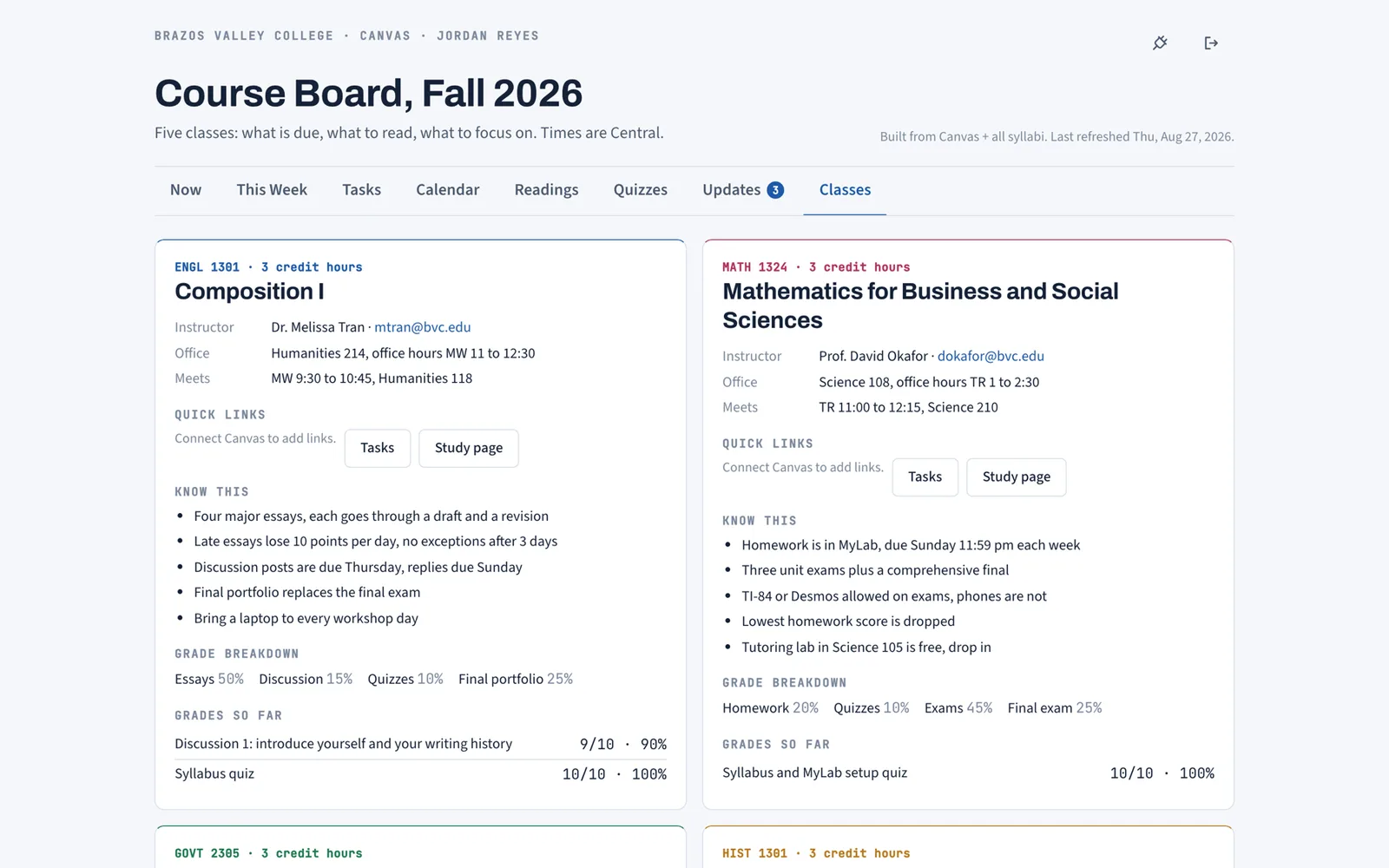
Blinn College's learning platform is eCampus, which runs on D2L Brightspace, not Canvas. You reach it at ecampus.blinn.edu or through the myBLINN portal, with your Blinn username and password. Texas A&M, by contrast, is on Canvas at canvas.tamu.edu. If you are a Blinn student, or a TEAM or co-enrolled student taking classes at both, you are living in two different systems with two different logins, and nothing connects them.
This guide explains the practical differences, what they mean for keeping track of your work, and how to run one planner across both schools.
Logging in to Blinn eCampus
- Go to ecampus.blinn.edu, or sign in at my.blinn.edu and open eCampus from the portal.
- Use your Blinn username and password (the same credentials as myBLINN).
- Courses appear on the eCampus home page as tiles once the instructor makes them available, usually the first day of class. A missing tile in week one is normal.
eCampus is the name Blinn uses. The software underneath is D2L Brightspace, so any Brightspace help article applies.
eCampus (Brightspace) vs Canvas: the differences that matter to students
| | Blinn eCampus (D2L Brightspace) | Texas A&M Canvas | |---|---|---| | Login | ecampus.blinn.edu, Blinn username | canvas.tamu.edu, NetID + Duo | | Where content lives | Content, organized by module | Modules | | Graded items | Assignments, Quizzes, Discussions under Assessments or Course Tools | Assignments (all types in one list) | | All-courses view of due dates | Calendar and the Work To Do widget on the home page | Dashboard List View and Calendar | | Announcements | Announcements widget on each course home page, plus notifications | Announcements in each course, plus Dashboard feed | | Phone app | Brightspace Pulse | Canvas Student | | Calendar subscription | Calendar, Settings, subscribe link (.ics) | Calendar, Calendar Feed (.ics) | | Student API access | Not available to students; requires an admin key | Personal access token from your own settings |
The last row is the one that changes what tools you can use. Canvas lets any student generate a personal access token and read their own courses with it. Brightspace does not offer that to students; API keys are issued by the institution's administrators. So third-party planners can sync from Canvas but not from eCampus, at least not without Blinn's involvement.
What that means if you take classes at both
A co-enrolled or TEAM student has A&M courses in Canvas and Blinn courses in eCampus. There is no view in either system that shows both. The Canvas calendar shows A&M; the eCampus calendar shows Blinn. Two phone apps, two notification settings, two places to check every morning.
The most common failure is not missing an assignment in one system. It is losing track of which system a course is in during a busy week and checking the wrong one. The second most common is the exam dates: at both schools, in-class exams tend to live in the syllabus PDF rather than as an item in the platform, so neither calendar shows them.
Keeping one planner across both
Coursemap is honest about its limit here: it syncs Canvas, and it does not sync eCampus, because eCampus does not give students a key. What it can do for Blinn classes is the syllabus half, which is where the exams are anyway.
For the A&M side (or any Canvas school):
- In Canvas, Account, Settings, Approved Integrations, New Access Token. Copy it.
- Paste it on the Coursemap Connect page. Courses, assignments, and announcements sync, each linked to the Canvas page.
For the Blinn side:
- Upload each eCampus course's syllabus PDF. Coursemap pulls the exam dates, grade weights, late policy, attendance rule, and office hours onto a class card.
- Add the eCampus assignments by hand as tasks, or copy them from the eCampus calendar once at the start of the term. Manual edits are kept on every later sync.
Now the Now tab shows the next seven days across both schools; Tasks is the whole semester, both schools, one list; Calendar has every exam in red regardless of which platform the course is on; Classes has the rules per course. Every reading you add gets notes and an 8 question quiz. The features page covers all eight views.
Coursemap is not affiliated with Blinn College, Texas A&M, D2L, or Instructure. It is free while in early access.
If you are Blinn-only
If all your classes are at Blinn, the honest advice is: eCampus's own Calendar and Work To Do widget are your all-courses view for platform items, and the syllabus PDFs are your source for exams. Subscribe the eCampus calendar to your phone (Calendar, Settings, the subscribe link) so due dates show next to your shifts. Then either write the exam dates into that calendar by hand on day one, or use the syllabus upload on Coursemap to do it and get the sixteen-week plan with it. Sync for eCampus is on our list for when Blinn's platform allows it; we will not claim it works before it does.
Quick answers
Is Blinn on Canvas? No. Blinn is on eCampus (D2L Brightspace).
Is eCampus the same as myBLINN? No. myBLINN is the portal (registration, records, financial aid). eCampus is the course platform. myBLINN links to it.
Can Coursemap sync my Blinn classes? Not today. It syncs Canvas schools. Blinn classes work by syllabus upload and manual tasks.
I am in the TEAM program. Which system has my classes? A&M courses are in Canvas; Blinn courses are in eCampus. Check the course's school, not the subject.
A first-week routine for co-enrolled students
Being in two systems is manageable if the first week is deliberate:
- Log in to both. Confirm every A&M course shows in Canvas and every Blinn course shows in eCampus. Note which school each course belongs to on paper; it is easy to forget by October.
- Download every syllabus PDF from both platforms the day it is posted.
- Subscribe both calendars to your phone: Canvas via Calendar Feed, eCampus via Calendar, Settings, subscribe. Now online due dates from both schools show side by side.
- Write every in-class exam and both finals onto that calendar by hand, or upload the PDFs to a board that extracts them. Neither platform's calendar has them.
- Set notifications to immediate for announcements and due date changes in both systems, because that is where deadline changes appear first.
- Pick one screen you look at each morning. If it is a board, sync the Canvas side and upload the Blinn side; if it is your phone calendar, make sure step 4 got done.
A co-enrolled student who does this once in week one has one plan for the term. One who does not has two half-plans and a surprise in week nine. The how it works page shows the board setup; the Blinn half is the syllabus upload, and it takes about a minute per course.
What we will and will not claim
Because this page will be found by Blinn students searching for eCampus, it is worth being direct. Coursemap does not sync eCampus. If a future Blinn integration exists, it will be announced on the pricing page under planned features and in the app, and this guide will be updated with a date. Until then, the honest offer to a Blinn-only student is the syllabus upload, the sixteen-week plan, the readings with notes and quizzes, and a manual task list, all free while in early access. That is still a better start to the term than five PDFs in a downloads folder, but it is not a sync, and we are not going to call it one.