TAMU Canvas: Login, Layout, and Planning the Semester
Texas A&M Canvas is at canvas.tamu.edu with your NetID. Where assignments, grades, and announcements live, and how to get every course on one plan.
By Hunter Forbes
Texas A&M Canvas is at canvas.tamu.edu. Sign in with your NetID and password, then approve the Duo push. If you are looking for the login link, that is it. If the page says you have no courses, the course has not been published yet by the instructor, or the semester has not started; both are normal in the first week.
The rest of this guide is for after you are in: where things live in TAMU Canvas, the settings worth changing on day one, and how to get every course onto one plan so you are not clicking through five course cards every morning.
Logging in to Texas A&M Canvas
- Go to canvas.tamu.edu (or find Canvas in the Howdy portal under the My Record or Applications area, depending on the current layout).
- Enter your NetID (the part before @tamu.edu) and your NetID password.
- Approve Duo two-factor. If Duo is not set up, it has to be done through the university's IT pages first; Canvas cannot skip it.
- The Canvas Student app on iPhone or Android works too: search for "Texas A&M University" when the app asks for your school, then sign in the same way.
Access to a specific course is controlled by the instructor. If it is the first week and a course is missing, wait a day before emailing.
Where everything is
Canvas has two navigation layers: the global bar on the far left (Dashboard, Courses, Calendar, Inbox) and the course menu inside each course.
- Dashboard: one card per active course. Switch it to List View (three dots, top right) to see every assignment from every course in one date-sorted list.
- Courses: all your enrollments. Star the current ones so only they show on the Dashboard.
- Calendar: every due date across all courses on a month grid. The Calendar Feed link at the bottom right lets you subscribe from Google or Apple Calendar; the Canvas calendar guide walks through it.
- Inbox: messages with instructors and classmates. Separate from your TAMU email; check both.
- Inside a course: Modules is usually where instructors organize the week's content. Assignments lists graded items. Grades shows what has been scored. Announcements is where deadline changes get posted first. Syllabus shows the course summary and sometimes the PDF.
At A&M the syllabus PDF is the document that matters. Instructors are required to publish one, and it is the only place the in-class exam dates, attendance rule, and grade weights are guaranteed to appear. Canvas assignments cover what gets turned in online. The exams are in the PDF.
Day-one settings worth five minutes
- Notifications. Account, Notifications. Turn "Announcement" and "Due Date" changes to notify right away. Leave the rest on daily summary or off, or you will mute the whole thing by week three.
- Star your current courses. Courses, All Courses, click the star. The Dashboard becomes clean.
- Add the calendar feed to your phone. Calendar, Calendar Feed, subscribe in Google or Apple Calendar. Deadlines show up next to your real life.
- Read every syllabus once, fully. Write the exam dates somewhere outside Canvas the same day. This is the step people skip and regret.
The problem with five course cards
Everything above works per course. The Dashboard List View and the Calendar combine due dates, but they only know what instructors entered in Canvas, and nothing about the syllabus. So a typical Aggie morning is: open Canvas, click into each course, check Announcements, check Modules, glance at Assignments, repeat five times, and still not know when the HIST exam is because it is only in the PDF.
One plan for all your courses
Coursemap reads TAMU Canvas and adds the syllabi. It is a website (works on your phone), it is free while in early access, and it is not affiliated with Texas A&M or Instructure.
Setup takes about two minutes:
- In Canvas: Account, Settings, scroll to Approved Integrations, New Access Token. Give it a name, generate it, copy it. This token is made from your own account and reads only what you can already see. You can revoke it from the same page any time.
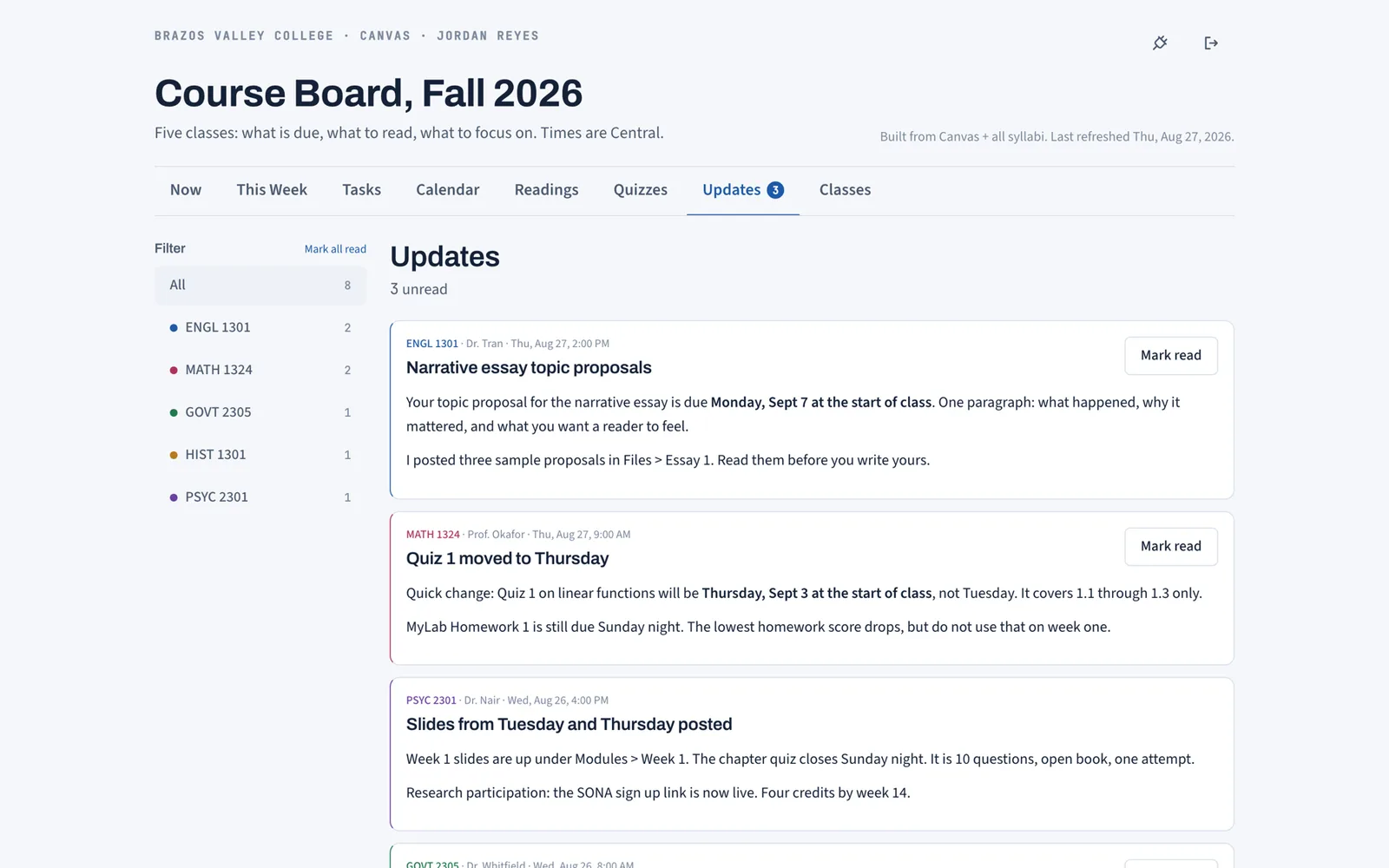
- Paste the token on the Coursemap Connect page. Every active course and every assignment with a due date lands on the board, linked back to the real Canvas page. Announcements come through on every sync, so the Updates tab is every course's announcements in one feed with an unread count.
- Upload each syllabus PDF. Coursemap pulls the exam dates, grade weights, late policy, office hours, and attendance rules onto the class page, and builds a sixteen-week plan: each week gets a one-breath focus and, per course, what to read, what to concentrate on, and what is due.
After that: the Now tab is the next seven days across all courses; Tasks is the whole semester in one list; Calendar is the month with exams in red; Classes is the syllabus rules per course; and every assigned reading has notes and an 8 question quiz. The features page shows all eight views.
Coursemap never writes to Canvas and never reads or stores grades. Sync again any time; nothing you checked off is lost.
Common TAMU Canvas questions
Is TAMU Canvas the same as Howdy? No. Howdy is the student portal (registration, records, billing). Canvas is where courses live. Howdy links to Canvas, but they are separate systems with the same NetID login.
A course is not in Canvas. Either it has not been published, or the instructor is not using Canvas for it (rare now, but it happens with some labs). Check the syllabus or email.
Can I use Coursemap for a Blinn class through the TEAM program? Only the A&M side syncs. Blinn is on eCampus (D2L), which does not offer student tokens; see Blinn eCampus vs Canvas. You can still upload the Blinn syllabus and track those classes by hand on the same board.
Does the token give anyone my password? No. It is a separate key, scoped to your account, revocable from the Approved Integrations page. Treat it like a password anyway: do not paste it anywhere you would not paste your NetID password.
A first-week routine for Aggies on Canvas
The first week sets the term, and most of what goes wrong later is a first-week skip. In order:
- Log in at canvas.tamu.edu and confirm every registered course shows on the Dashboard. If one is missing after the first class meeting, email the instructor that day.
- Open each course and download the syllabus PDF. Save it somewhere you will find it in week ten.
- Read the attendance rule and the late policy in each one. At A&M, a course with a strict attendance cap will drop you for absences you thought were harmless.
- Write every in-class exam and the final on the calendar you actually check, or upload the PDFs and let the board do it.
- Set Announcement and Due Date notifications to immediate. Deadline changes get posted as announcements first.
- Do the first-week gates: syllabus quizzes, intro discussion posts, any course contract. They are small points and the easiest way to start a course in a hole.
After week one, the routine is: Sunday, ten minutes reconciling the plan against each course; every morning, one screen (the Now tab or the Dashboard List View) instead of five course cards. The how it works page shows the two-minute setup that turns steps 2 through 4 into a single upload per course.